Trips
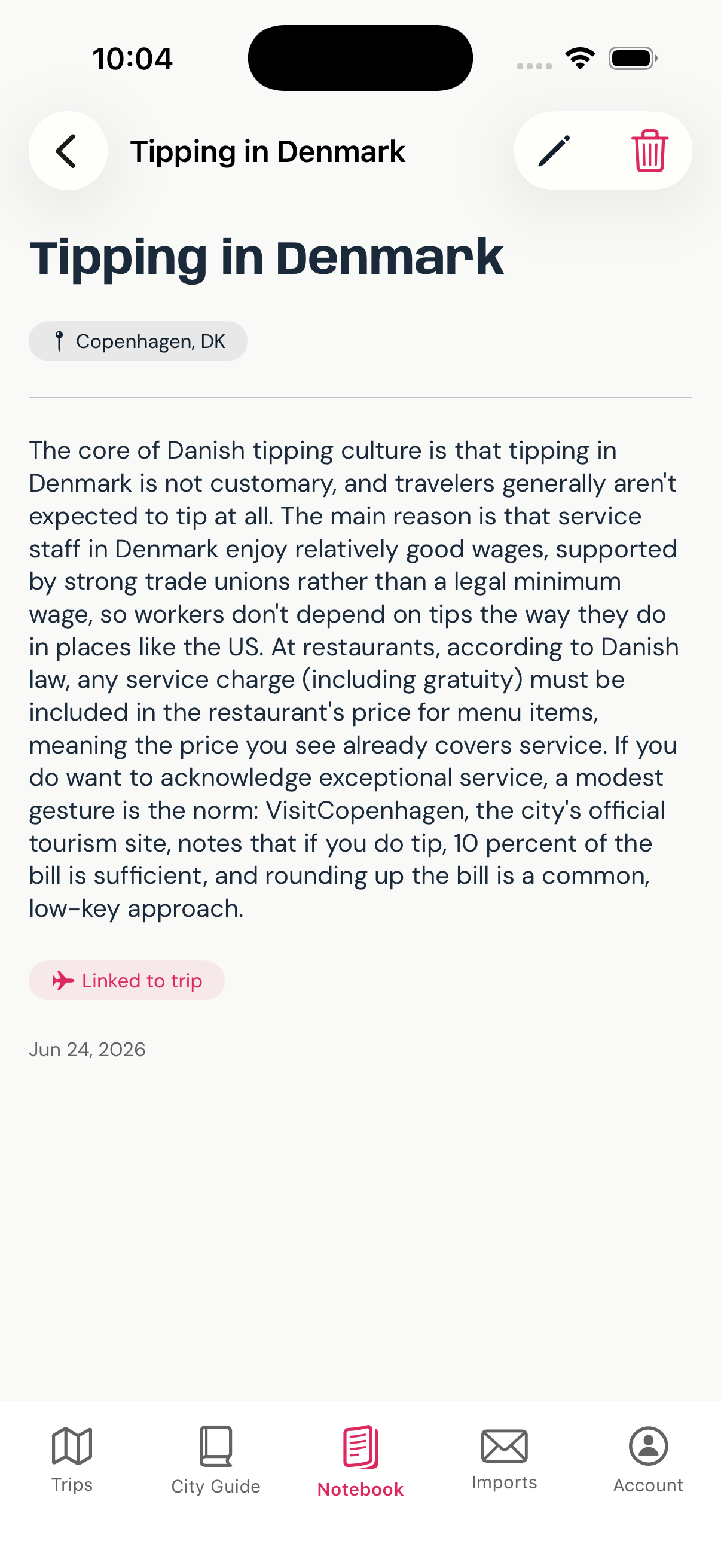
The app's home screen. Your trip list lives here — start new trips, jump back into existing ones, and see everything coming up or already past at a glance.
Upcoming & Past trips
Trips whose end date is today or later appear in UPCOMING, sorted by start date. Completed trips collapse under PAST TRIPS — tap the label to expand them.
Trip card
Tap to open the trip. Tap the packing bag icon on any card to jump straight to that trip's Packing tab. Long-press for a context menu: Pin to Top / Unpin, or Share This Trip.
+ button
The pink circle in the bottom-right corner starts the new trip setup flow — name, dates, destination, and travelers.
City Guide
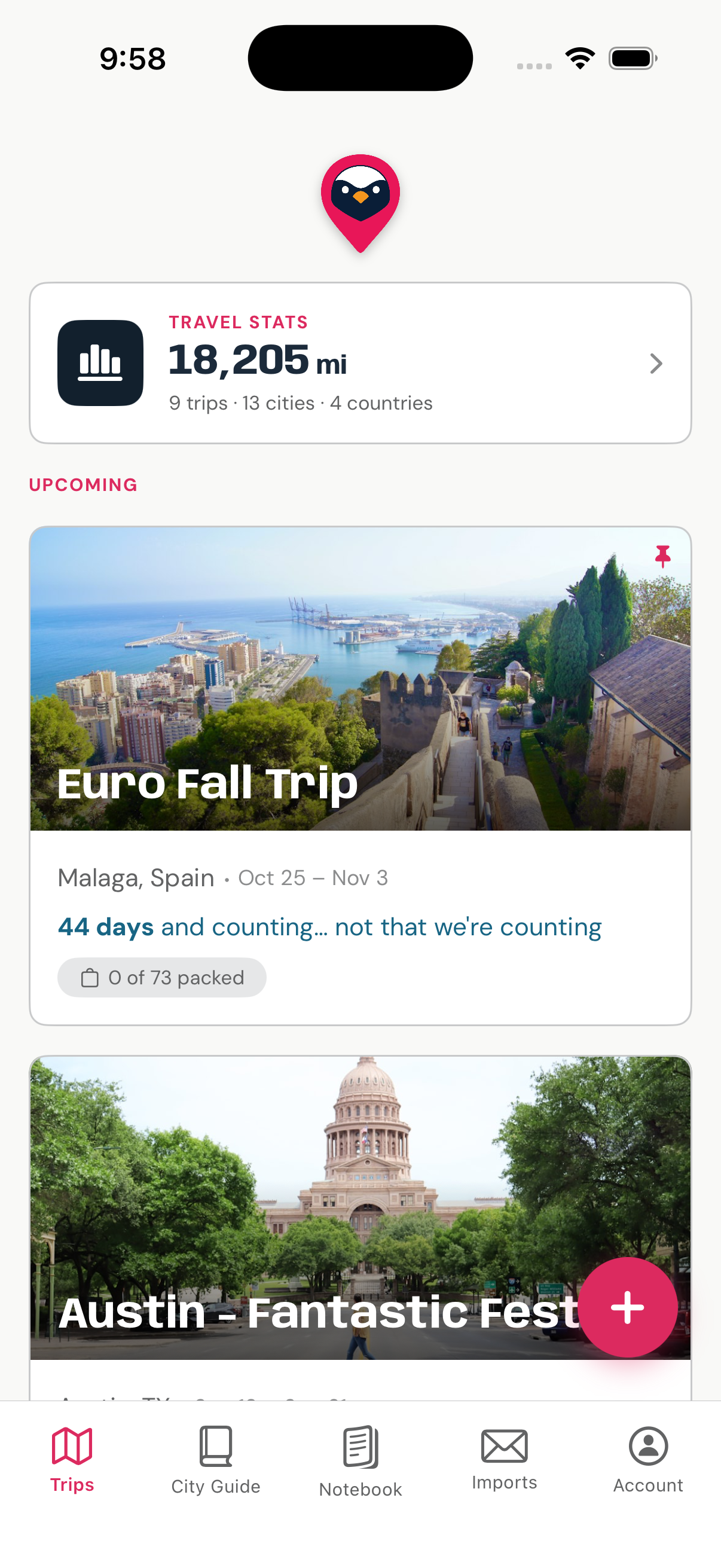
Everywhere you have ever saved, organised by city. The City Guide is yours rather than any one trip's: a restaurant you were told about in March is still there when you finally book the flight in October. It is the memory the rest of the app draws on.
Why it is separate from a trip
Places outlive the trips they were found on. Somebody recommends a bar in Lisbon while you are planning Copenhagen; you save it, and two years later it is waiting under Lisbon. If places lived inside trips, that recommendation would be filed under a holiday it has nothing to do with, and lost when the trip ended.
City cards
One card per city you have saved something in, with the total and a breakdown by category. Open a city for its full list, grouped the same way — Eat & Drink, See & Do, Getting Around, Sleep & Stay, Practical.
Search
Matches a city's name or the name of any place saved inside it, so you can find somewhere you only half-remember without recalling which city it was in.
Adding a place
Destination, category, address, notes and a link. Notes are the part worth filling in — the address is on the map, and "the corner table by the window" is the bit you will not remember.
Feeding a trip
When you plan a trip to a city you have saved places in, the trip's Trip Guide can pull them in. Research done months ago surfaces exactly when it is useful, which is the whole point of keeping it.
On the web
The City Guide is on jollyboat.app as well as in the app, with the same places and the same categories. Cities are listed alphabetically on the web and by most recently added in the app — a phone scrolls a short list, a wide screen is scanned.
Why it works this way
There is a longer piece about what a City Guide is for, and why it is deliberately empty until you fill it, at jollyboat.app/city-guides.
See also Trip Guide · Place Detail
Notebook
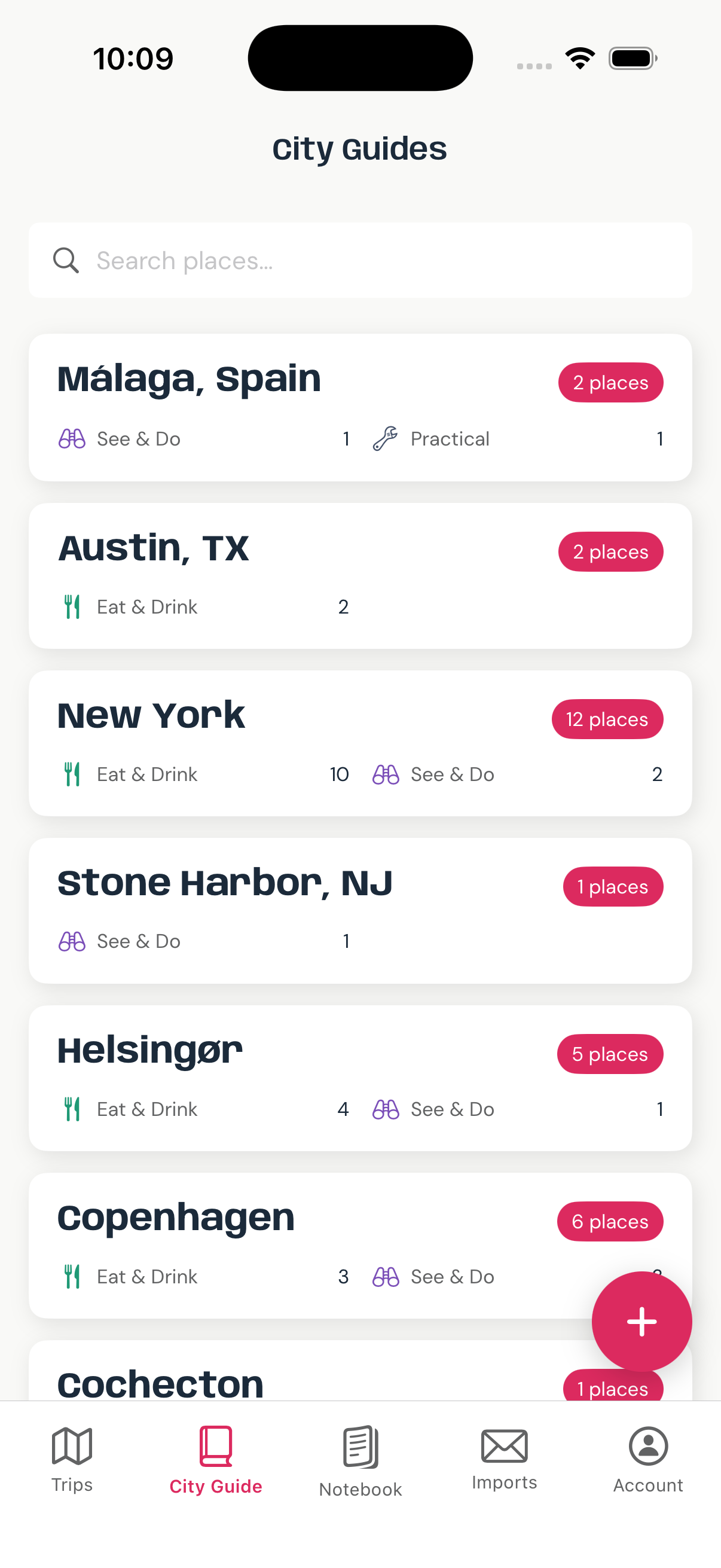
A personal journal layer, organized by destination city. Capture observations, recommendations you've heard, packing thoughts, or anything freeform that doesn't fit neatly into an itinerary card.
City cards
Each card shows the destination name, number of entries, and up to three noddy avatars representing travelers most referenced in that city's notes. Tap to see all notes for that city.
Search
Filters cities by name or by entry title within them.
+ button
Opens the note editor. Set a title, write freeform text, tag trip members, and optionally associate the entry with a place or trip.
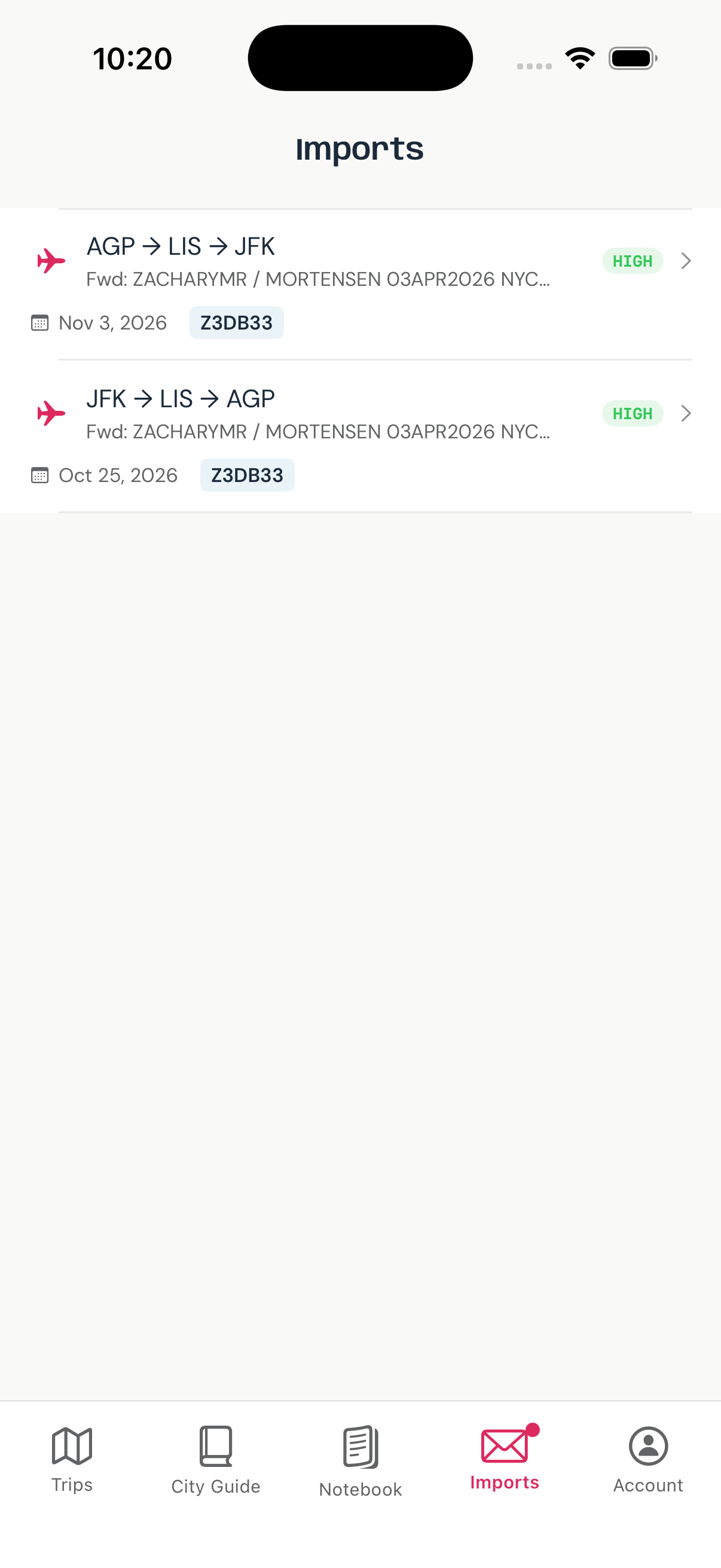
Imports
An inbox for forwarded booking confirmations. Turn flight, hotel, and restaurant emails into structured itinerary cards without manual data entry.
How it works
Forward any confirmation email to your personal Jollyboat import address. The app parses the details and places a draft in this inbox, ready for you to review and assign to a trip.
Reviewing a draft
Tap a draft to open a pre-filled card editor. Choose which trip to file it under, confirm the parsed details, and save.
Empty state
When no drafts are pending, the screen shows your personal import address (import@mail.jollyboat.app) and a Copy button so you can add it to your contacts or set up a forwarding rule.
Account
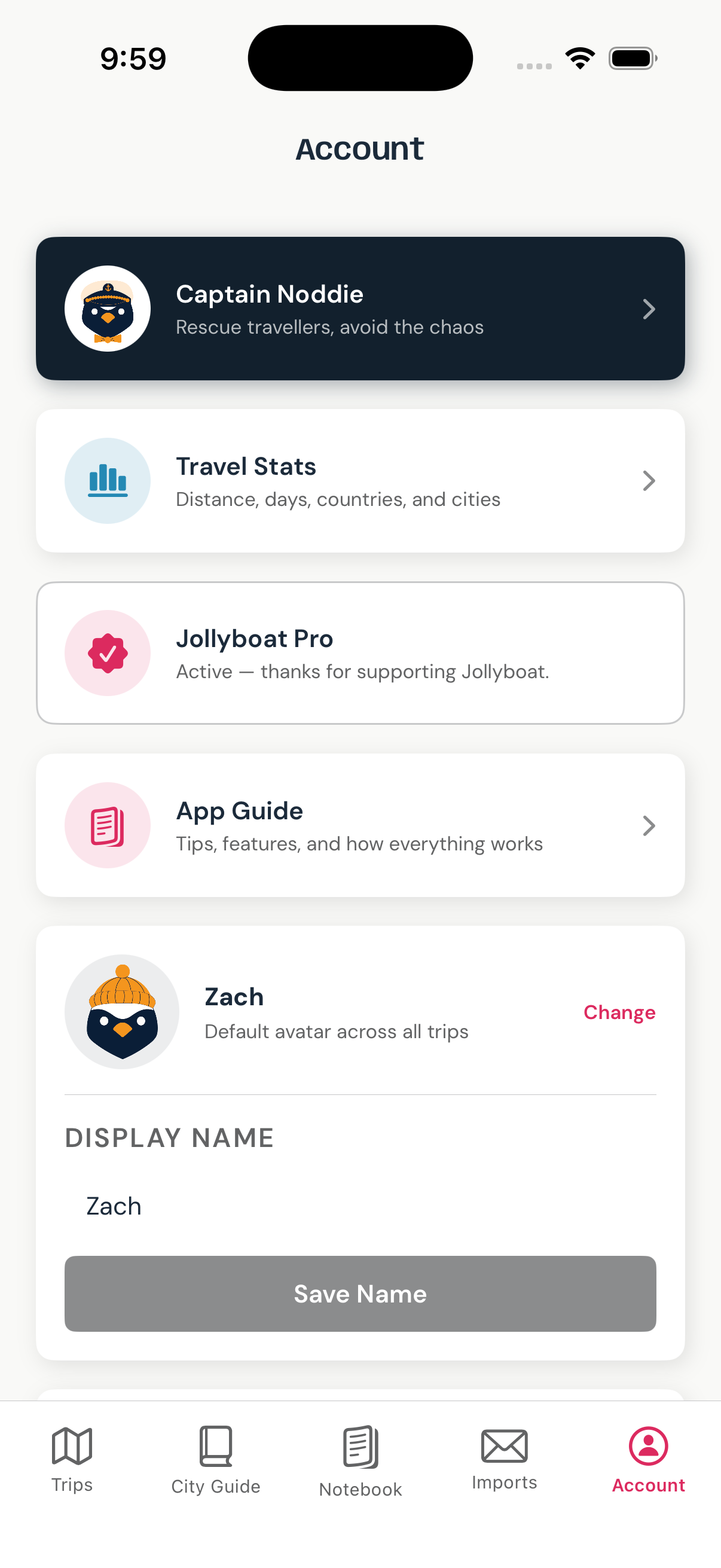
Your profile, settings, and Travel Crew. Update your name and avatar, configure email import, manage your Travel Crew, and sign out.
Avatar & Display Name
Tap Change next to your noddy to pick a new character from the full grid — the selection saves immediately. Update your display name and tap Save Name to apply it.
Email Import
Explains how to forward confirmations to import@mail.jollyboat.app. Add secondary sender addresses here if you book travel from multiple email accounts.
My Travel Crew
Lists everyone in your Travel Crew — the people you travel with most. Tap Invite to My Travel Crew to share a personal invite link. When someone accepts, both of you are added to each other's crew automatically, making it easy to add them to future trips without sending a link every time.
Itinerary
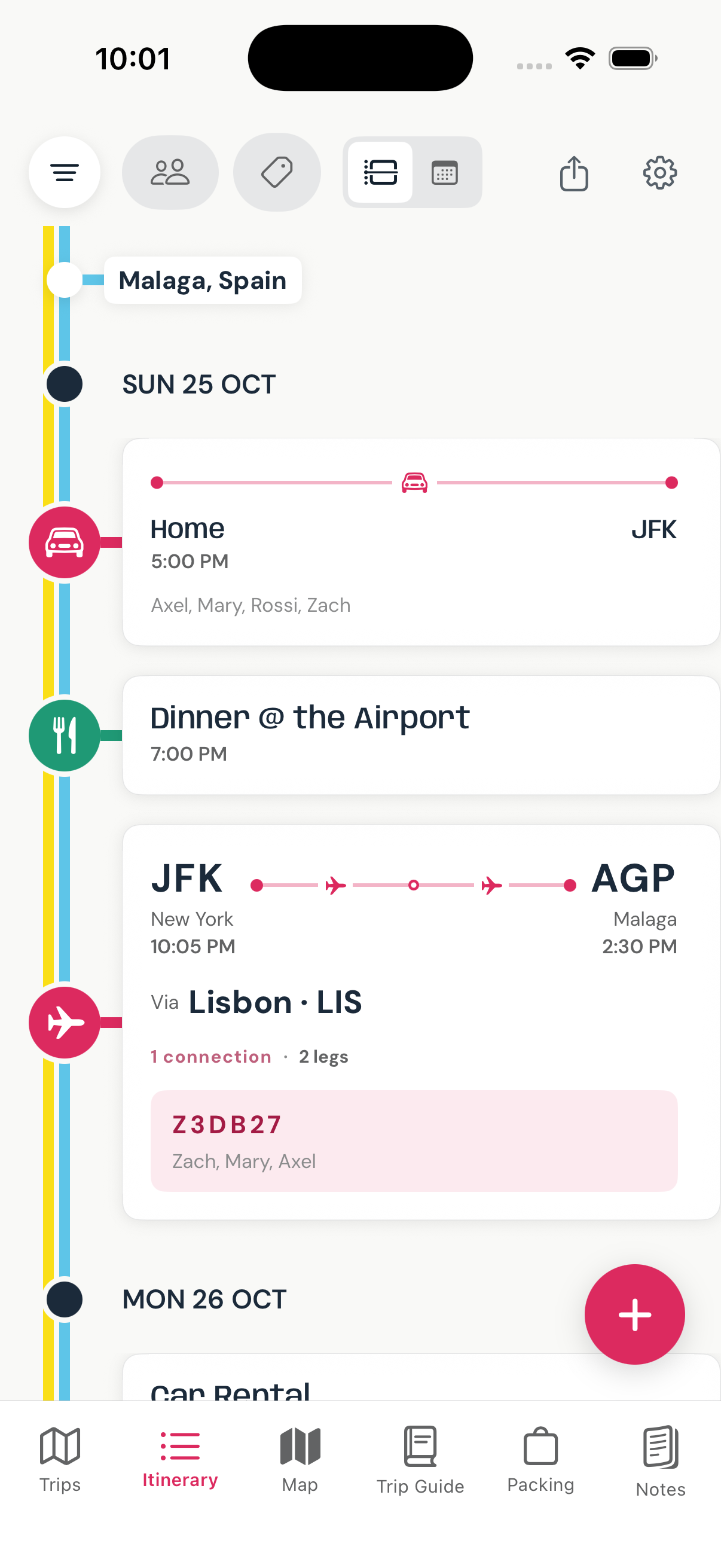
The primary day-by-day view of everything happening on a trip. See the full timeline of plans, add new events, filter by traveler or type, and navigate to individual plan details.
Timeline & Week views
Toggle between a day-by-day timeline and a condensed week overview. In week view, tap any day to jump back to it in timeline mode.
Filter chips
Filter the timeline by traveler (show only plans assigned to one person) or by plan type (flight, hotel, activity, etc.). A pink FILTERED banner appears at the top when active.
Flight change banner
If a flight's time was updated since your last visit, a banner appears at the top calling it out. Dismiss it to clear the notification.
+ button
Adds a new plan. Visible to editors and owners only. Opens the card editor with today's date pre-filled, or the trip start date if the trip hasn't started yet.
Map
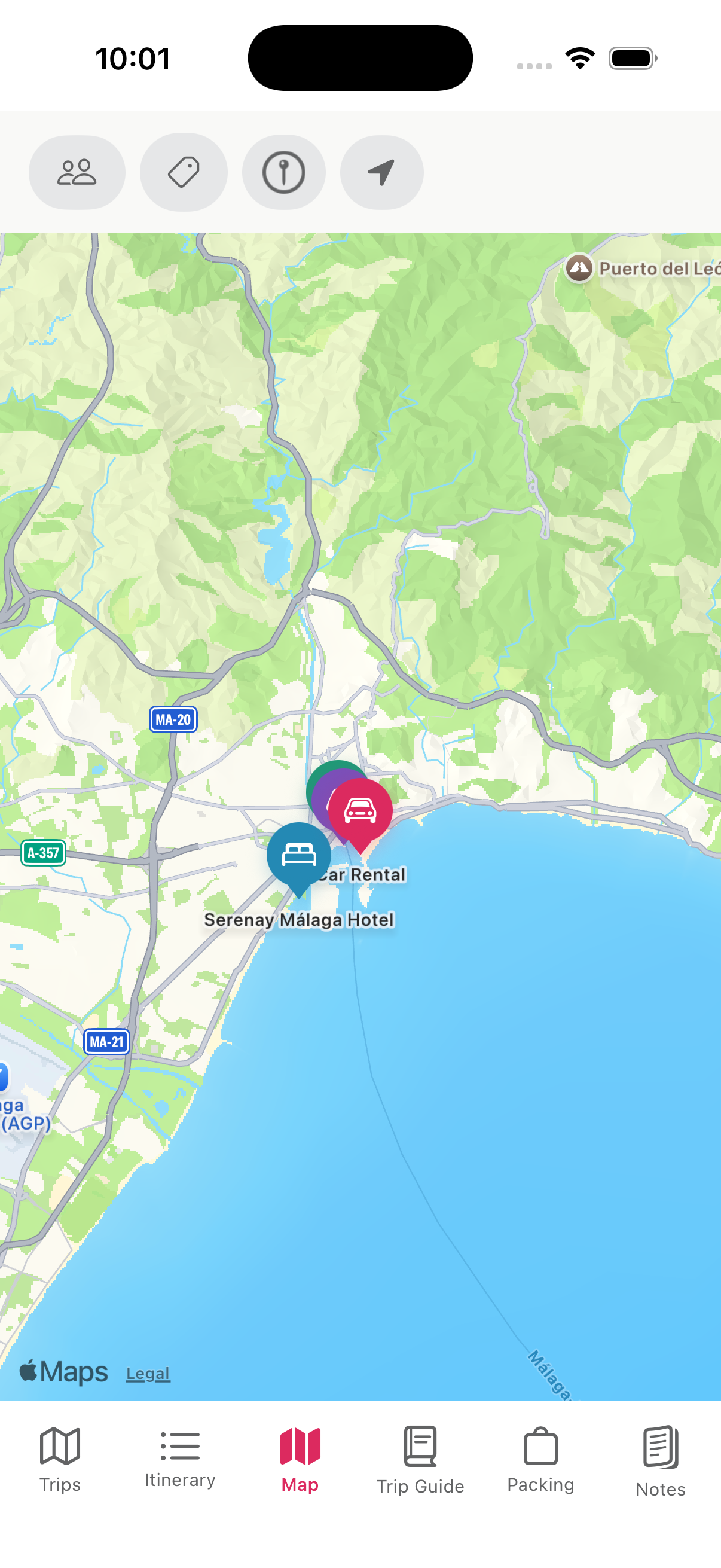
A full-screen map of all your trip plans and saved places with addresses. Visualize where everything is, track companions' locations, and tap any pin to open its details.
Itinerary pins
Every plan with a saved address gets a pin on the map, colored by plan type. Tap a pin to see a preview card at the bottom; tap the card to open the full detail view.
Places layer
Toggle the Places chip to show your saved City Guide places as additional pins. Tap the chip again to open a category filter — narrow to restaurants, hotels, or any specific type.
Live location
Tap the Travelers chip to reveal location options. Show me on map makes your noddy pin visible only to you. Share with travelers broadcasts your live location to everyone on the trip. A clock badge on a traveler's pin means their location is stale.
Trip Guide
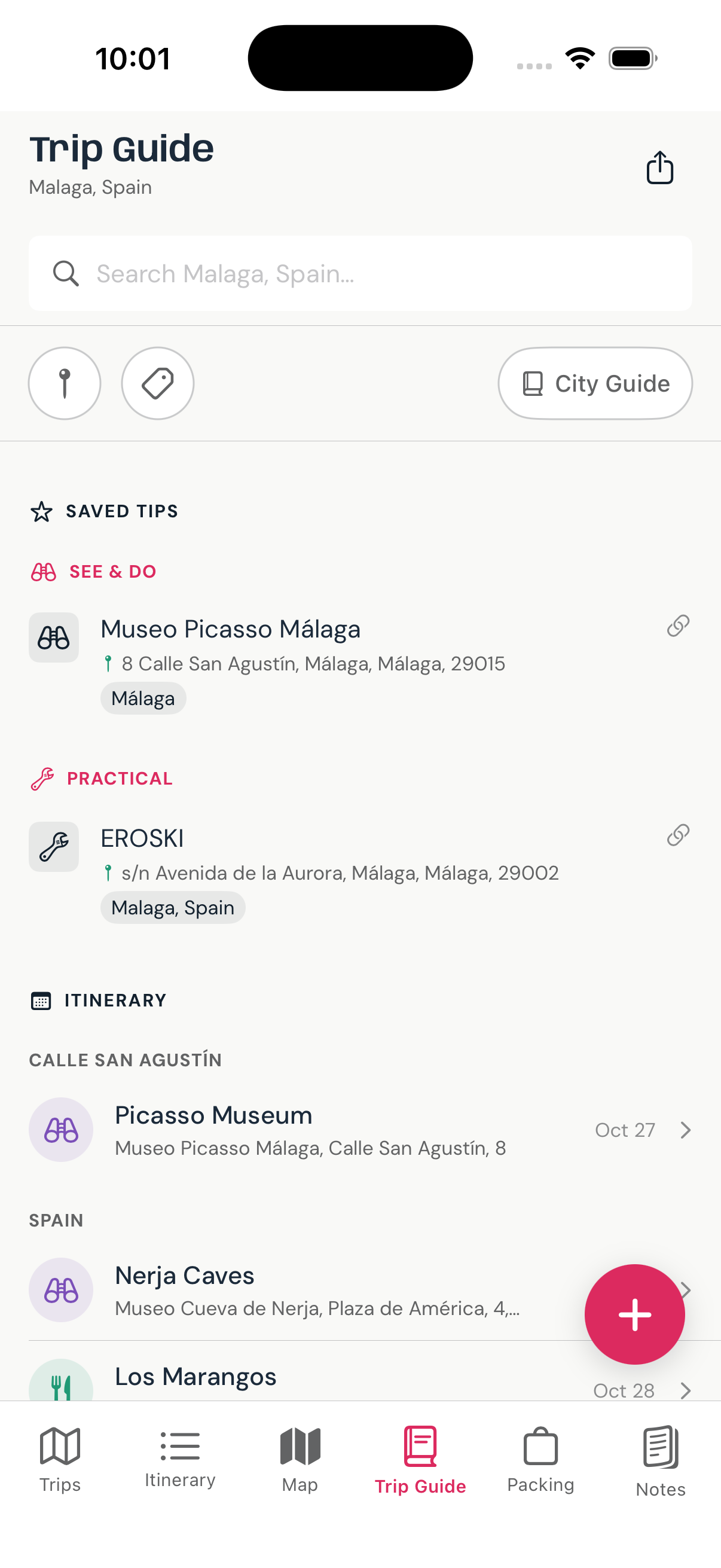
A combined reference layer for everything you've researched and planned — saved tips, notebook notes, and itinerary cards, all in one searchable place.
Content sections
SAVED TIPS shows places and recommendations linked to this trip, grouped by category. NOTES shows notebook entries linked here. ITINERARY shows all dated plan cards grouped by city.
Filter row
Narrow by city (multi-city trips), category (See & Do, Eat & Drink, etc.), or by traveler noddy. Filters stack — you can combine city + category at the same time.
City Guide button
Opens a sheet showing everything you've saved in your broader City Guide for the trip's destinations that hasn't been linked to this trip yet. Great for surfacing old research at the right moment.
See also City Guide · Place Detail
Packing
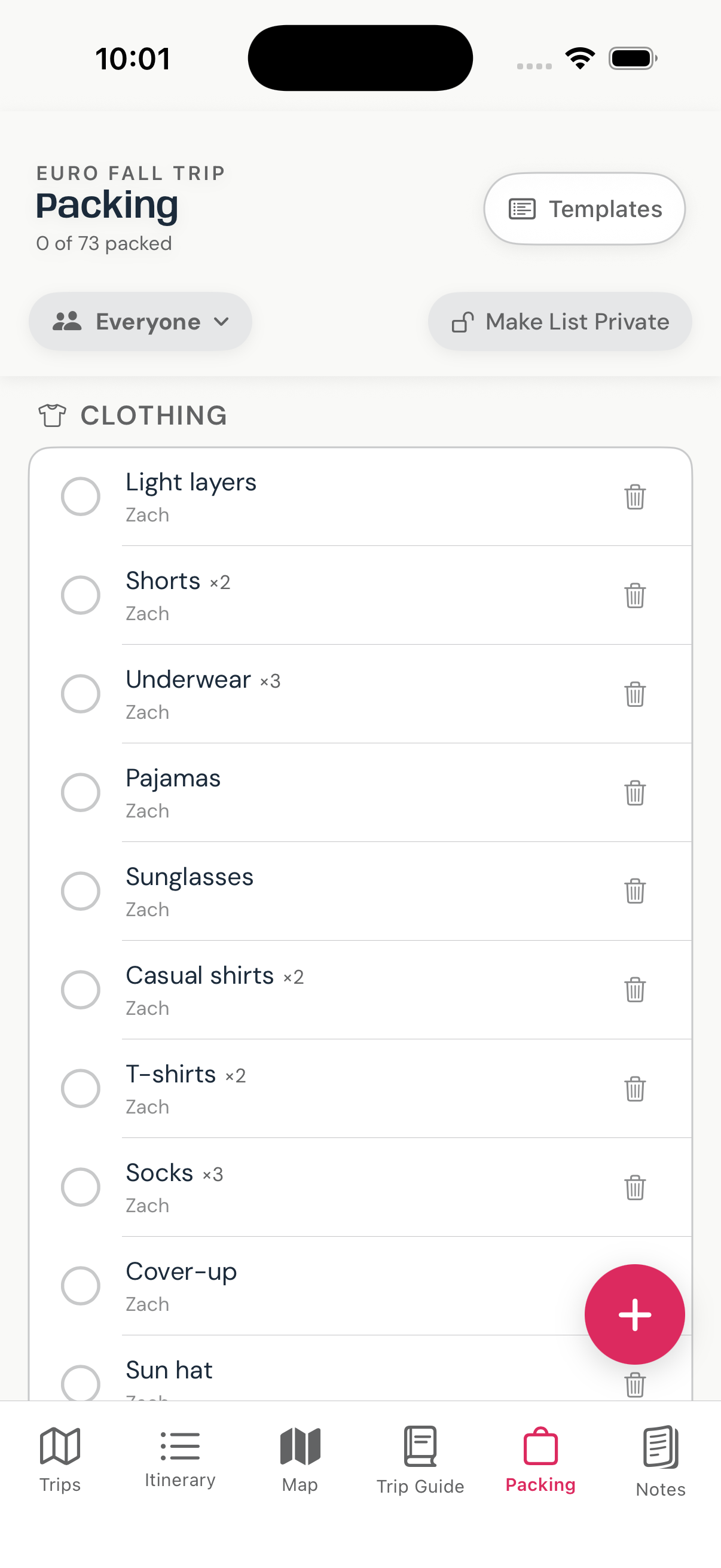
A collaborative packing checklist for the trip. Items can be assigned to specific travelers or shared across the group, and everyone can check things off as they pack.
Categories
Items are organized into: Carry-On · Checked Bag · Clothes · Toiletries · Documents · Gear · Medications.
Checking off
Tap the circle next to any item to mark it packed — it turns pink with a strikethrough, and a note appears showing who checked it and when. Haptic feedback confirms the action.
Person filter & private lists
On group trips, filter chips let you view one traveler's items at a time. Tap the lock icon next to your own chip to make your packing list private from other travelers.
Adding items
The + button opens an Add Item panel: pick a category, assign to Group or a specific person, name the item, and optionally set a quantity.
Notes
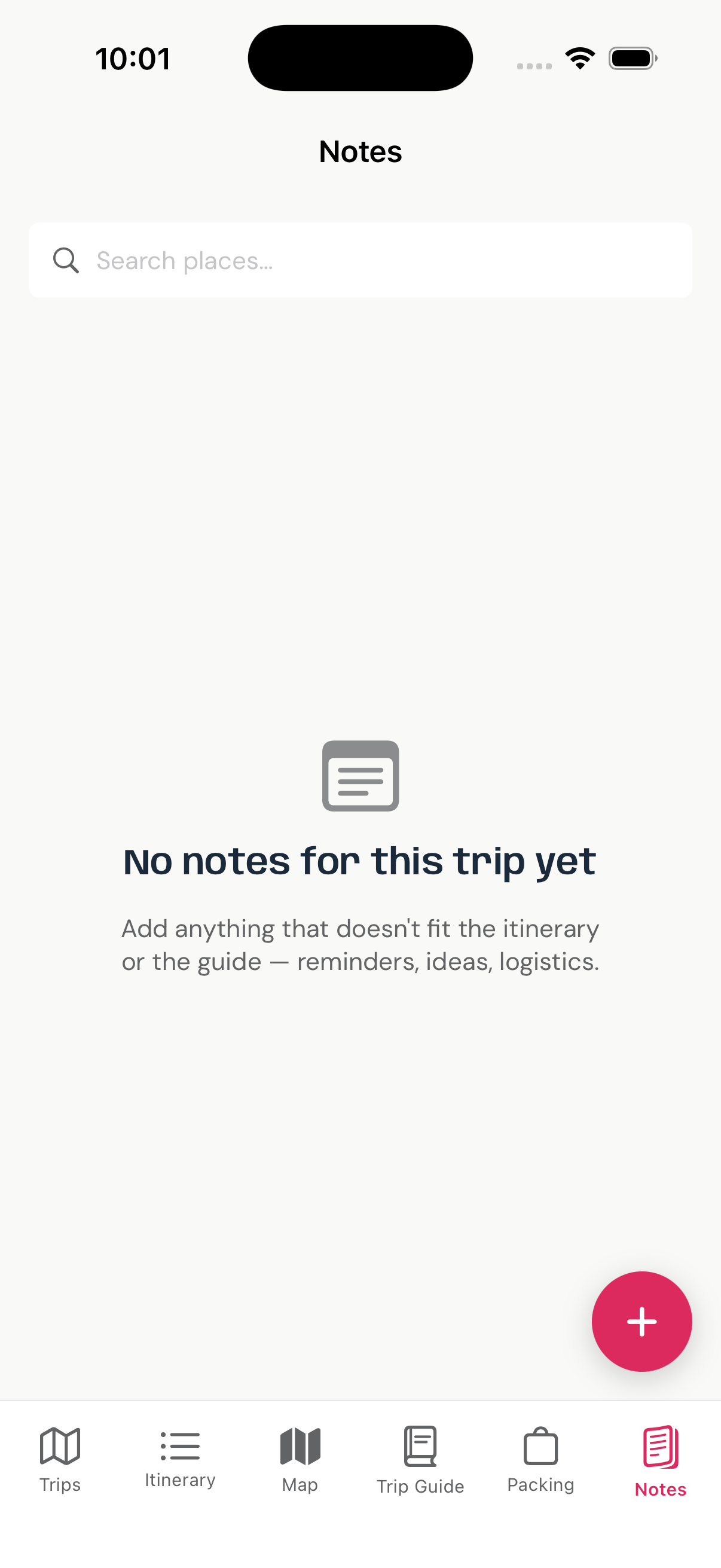
A trip-scoped notebook for freeform entries tied to this trip. Capture things that don't fit a plan card or a saved place — observations, logistics, ideas, reminders, day-of notes.
Note list
Each row shows the entry title, a date, and any tagged travelers. Tap a row to read the full note. Tap the pencil or trash icons to edit or delete it.
Noddy filter
Tap a traveler's avatar chip on any note row to filter the list to notes tagged to that person. A dismiss chip appears at the top to clear the filter.
+ button
Opens the note editor pre-filled with this trip's destination and trip ID, so the new note is automatically linked here.
Plan Detail
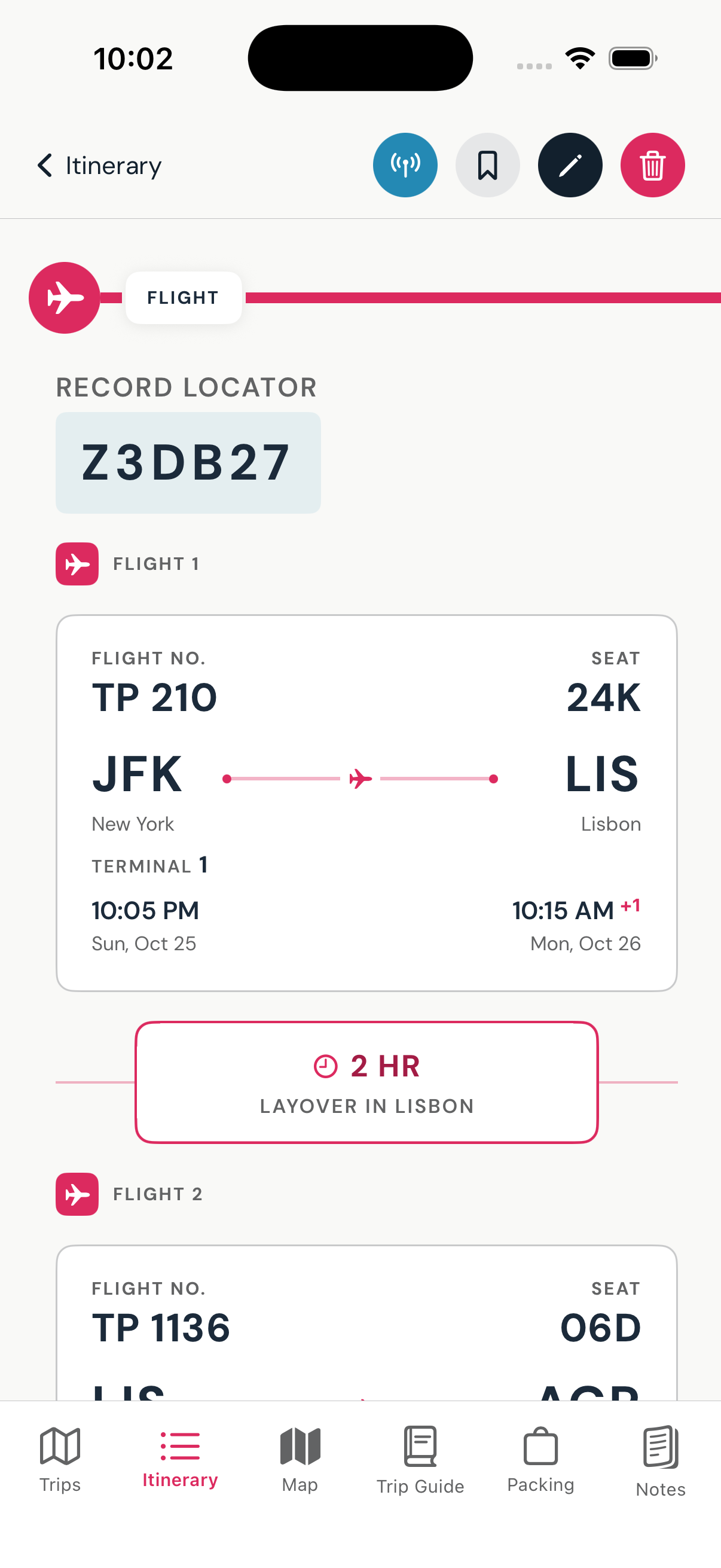
Opens when you tap a plan card in the Itinerary. Shows the full details of a specific plan — dates, times, address, reference number, travelers, notes, booking link, and a map thumbnail.
Standard cards
Shows type badge, title, date and time, confirmation reference, address with a tappable map thumbnail (opens Google Maps), assigned travelers, notes, and booking link.
Flight & transport (boarding pass layout)
Displays a styled boarding pass card with airport or station codes, a route sparkline, departure and arrival times, airline or operator, service number, terminal, and seat assignment.
Multi-leg journeys
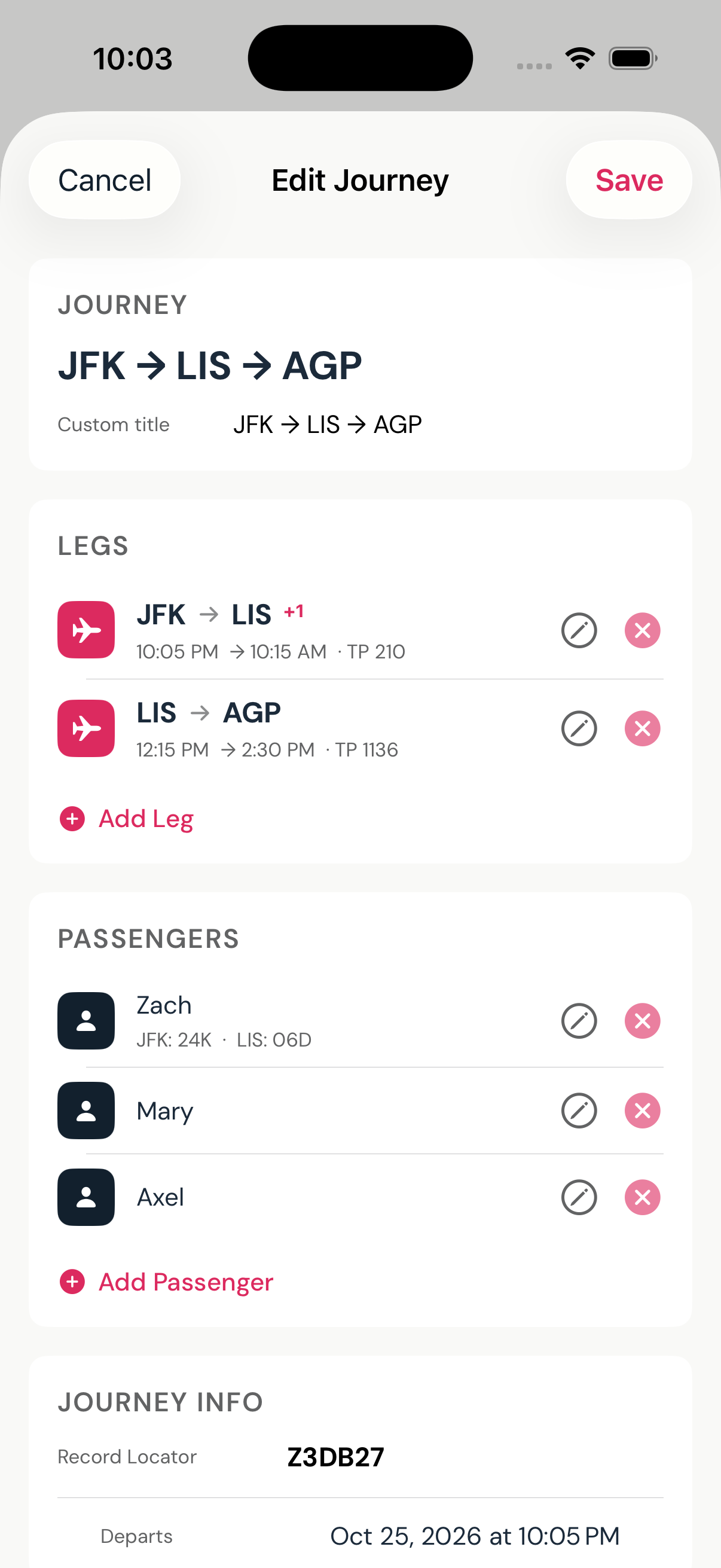
Each leg of a connecting journey gets its own boarding pass card stacked top to bottom, with a layover banner between legs showing the connection city and layover duration.
New / Edit Plan
Opens from the + button in Itinerary, or from the pencil icon on any plan detail. Create or edit any itinerary plan — activities, restaurants, hotels, flights, trains, buses, ferries, car rentals, and more.
Type grid
Choose from Getting Around · Sleep & Stay · Eat & Drink · See & Do · Practical. Choosing Getting Around reveals a mode row: Flight · Train · Car · Parking · Bus · Ferry · Bike · Journey (multi-leg) · Other.
Route section (transport)
FROM and TO fields accept IATA airport codes for flights, or free-text station/city names for ground transport. Add carrier, service number, terminal, and seat info.
Date & time
Date picker constrained to the trip window. Lodging shows check-in and check-out pickers with automatic night count. Flights have an overnight toggle for next-day arrivals.
Import mode
When opened from an Imports draft, a trip picker appears at the top. All other fields are pre-populated from the parsed confirmation email — review, adjust, and save.
Trip Settings
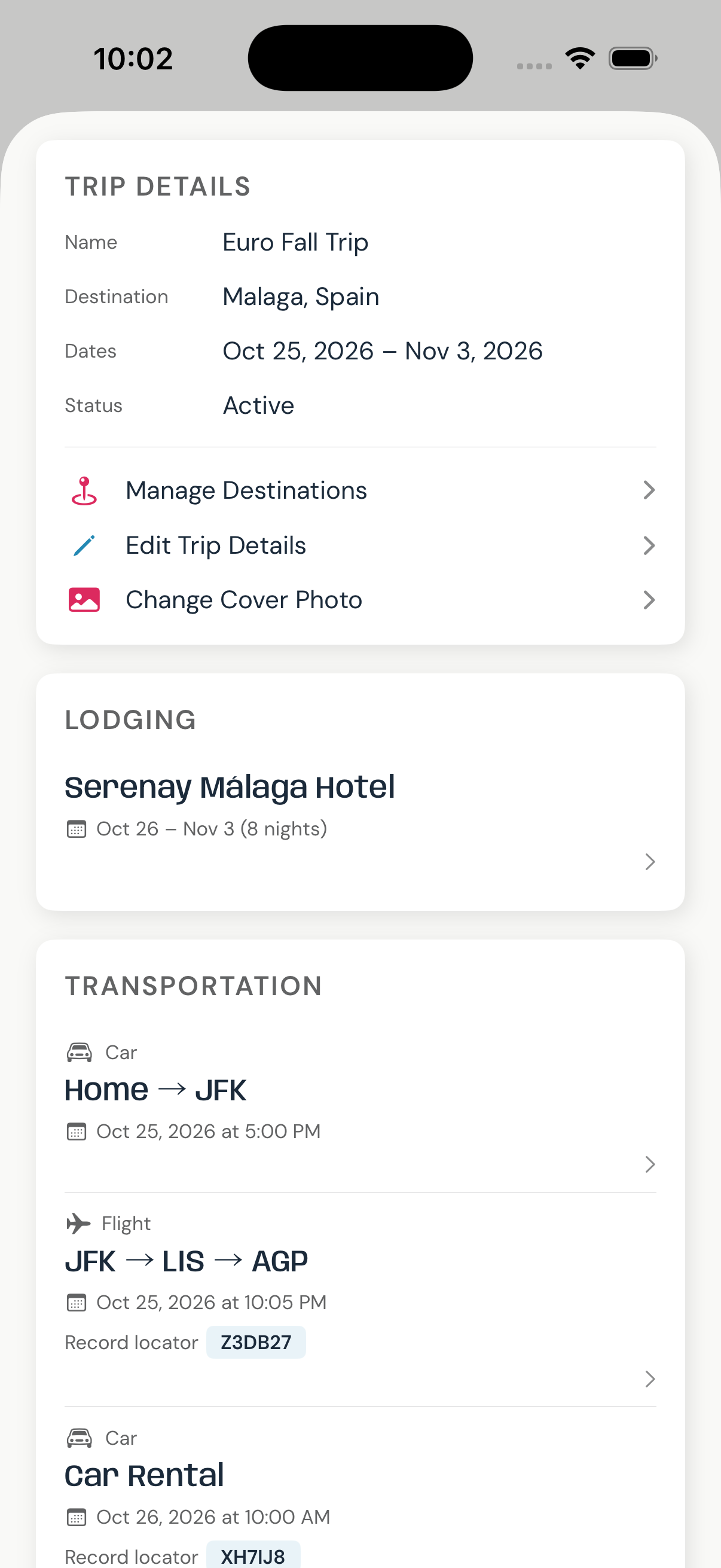
Accessible from the gear icon on the Itinerary screen. View trip details, manage lodging and transport summaries, edit the trip, manage travelers, and control sharing.
Trip details
Name, destination, dates, and status at a glance. Editors and owners can rename the trip, change dates, manage destinations, or update the cover photo.
Lodging & Transportation
Quick-access lists of all lodging and transport cards on the trip — tap any row to jump to that card's detail view.
Sharing
The trip's share link lets anyone with it join and edit the trip. Copy or share it via the iOS share sheet. Owners can regenerate the link to revoke access from a previous share.
My Location
Toggle to share your live GPS location with trip members during the trip.
Danger zone
Owners see Delete Trip (permanent, removes all plans and members). Non-owners see Leave Trip.
Place Detail
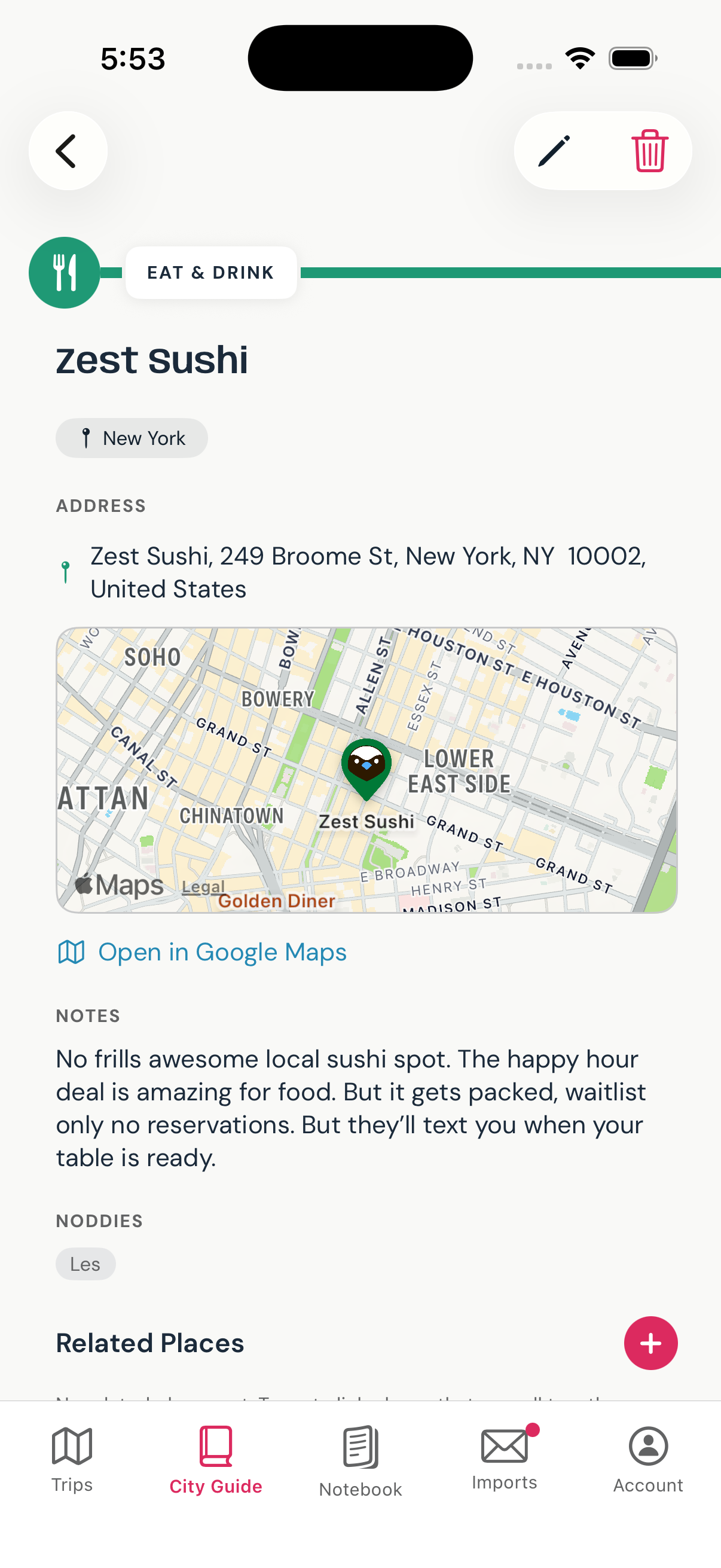
Opens when you tap a saved place in Places, Trip Guide, or a map guide pin. Shows the full details of a saved place — address, notes, website link, assigned travelers, and related places.
Content
Category badge, title, destination and trip chip, address with a tappable map thumbnail (opens Google Maps), notes, website link, and traveler tags.
Related Places
Places you've manually linked together. Tap + to add related places from a searchable picker. Tap ✕ on any related place to remove the link.
Archive & Trip assignment
Archive a place to hide it from main lists while preserving it. Use Add to Trip (or Change Trip) to link the place to a specific trip so it appears in that trip's guide.
See also City Guide · Trip Guide
Notebook Entry
Full view of a saved note — title, city tag, traveler tags, body text, optional trip badge, and creation date. Tap the pencil to edit or the trash to delete.
Reading a note
The full note body is shown in a readable layout. The title appears in Anybody font at the top, with the city chip and traveler noddies below it.
Editing
Tap the pencil icon to open the inline editor. Change the title, body, destination, traveler tags, or trip association. Changes save when you close the editor.